AI Integration (MCP)
VMark includes a built-in MCP (Model Context Protocol) server that allows AI assistants like Claude to interact directly with your editor.
What is MCP?
The Model Context Protocol is an open standard that enables AI assistants to interact with external tools and applications. VMark's MCP server exposes its editor capabilities as tools that AI assistants can use to:
- Read and write document content
- Apply formatting and create structures
- Navigate and manage documents
- Insert special content (math, diagrams, wiki links)
Quick Setup
VMark makes it easy to connect AI assistants with one-click installation.
1. Enable MCP Server
Open Settings → Integrations and enable the MCP Server:
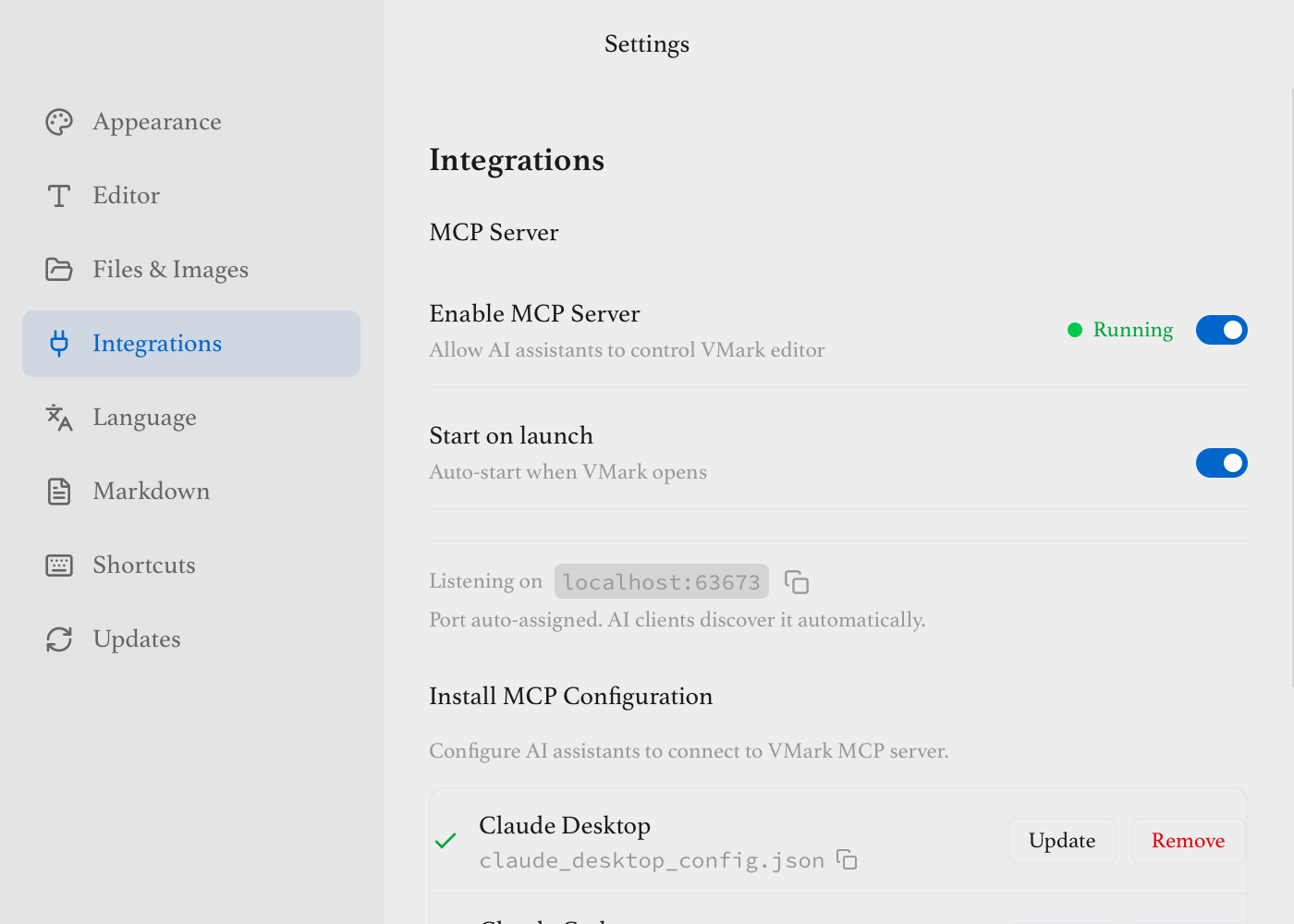
- Enable MCP Server - Turn on to allow AI connections
- Start on launch - Auto-start when VMark opens
- Auto-approve saves to a new location and genie results - Off by default. Lets an AI save a document to a new path without asking, and lets a genie apply its result directly instead of as a suggestion. Ordinary AI writes are never gated by it — their safety net is the edit checkpoint history (see How Edits Work)
2. Install Configuration
Click Install for your AI assistant:
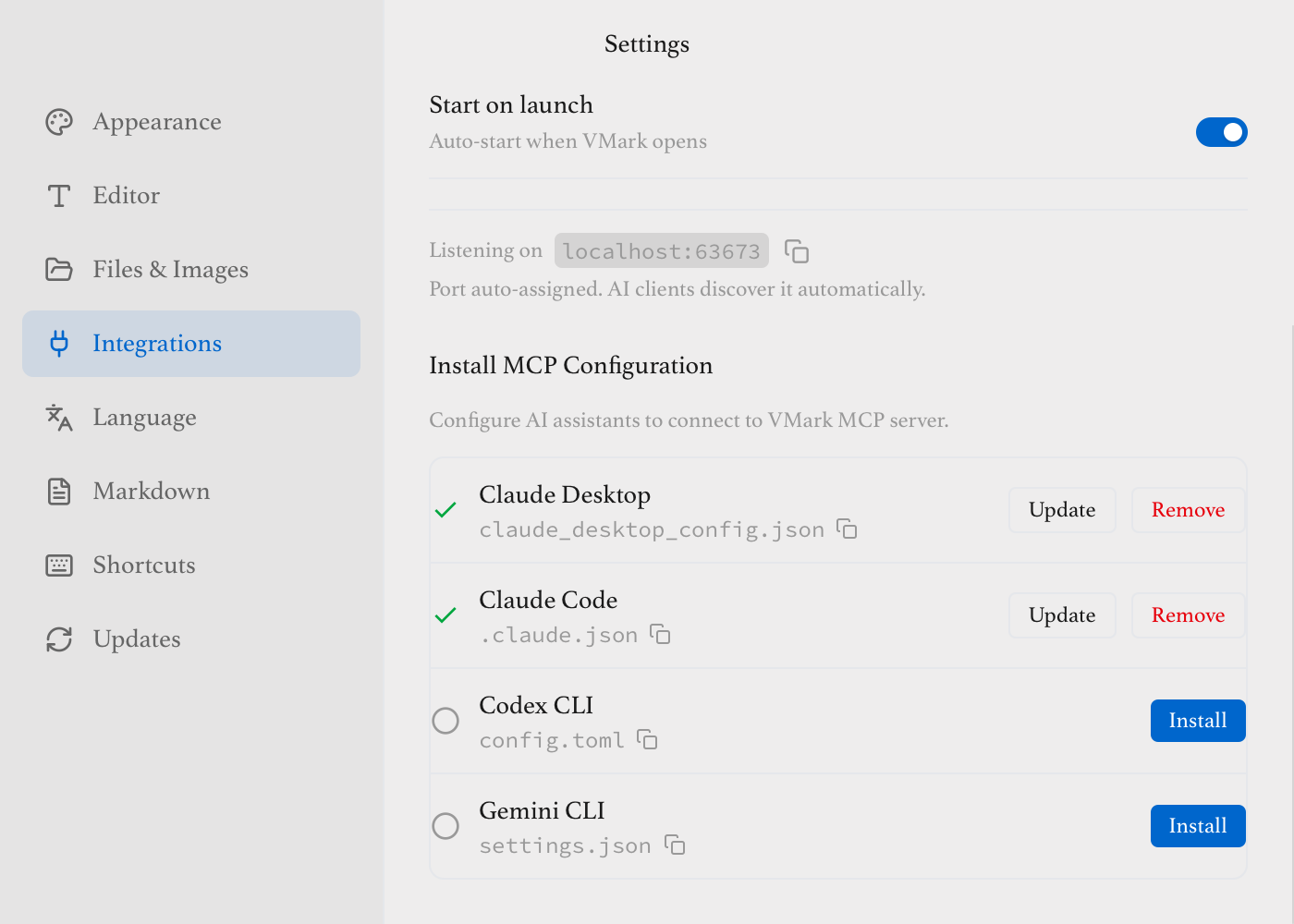
Supported AI assistants:
- Claude Desktop - Anthropic's desktop app
- Claude Code - CLI for developers
- Codex CLI - OpenAI's coding assistant
- Antigravity CLI - Google's
agy, the successor to Gemini CLI - Grok CLI - xAI's coding agent
- opencode - the open-source, provider-agnostic terminal agent
Gemini CLI is discontinued
Google replaced Gemini CLI with Antigravity. If an earlier VMark install left a vmark entry in ~/.gemini/settings.json, the Integrations panel shows a Discontinued row for it with a Remove button; new installs target Antigravity instead.
Other MCP-Compatible Clients
Other MCP-compatible clients such as Cursor, Windsurf, and similar tools can also connect to VMark's MCP server. Configure them manually by pointing to the MCP server binary path (see Manual Configuration below).
CC-Switch
If you manage your AI CLIs with CC-Switch, the installer also shows a CC-Switch row. Add to CC-Switch opens a ccswitch://v1/import link that hands VMark's MCP server — its binary path — to CC-Switch, which then writes the vmark entry into whichever CLIs you manage there; a copy button gives you the link itself if you would rather paste it. The row is disabled until VMark has resolved its own MCP binary.
Status Icons
Each provider shows a status indicator:
| Icon | Status | Meaning |
|---|---|---|
| ✓ Green | Valid | Configuration is correct and working |
| ⚠ Amber | Path Mismatch | VMark was moved — click Repair |
| ✗ Red | Binary Missing | MCP binary not found — reinstall VMark |
| 🗎 Red | Config Unreadable | VMark cannot read or parse the config file, so whether it holds a VMark entry is unknown. The message names the file and the reason. Fix or move it, then click Recheck — install and repair are withheld until it parses, because writing to a file VMark cannot read would risk destroying its contents |
| ○ Gray | Not Configured | Not installed — click Install |
VMark Moved?
If you move VMark.app to a different location, the status will show amber "Path Mismatch". Simply click the Repair button to update the configuration with the new path.
3. Restart Your AI Assistant
After installing or repairing, restart your AI assistant completely (quit and reopen) to load the new configuration. VMark will show a reminder after each configuration change.
4. Try It Out
In your AI assistant, try commands like:
- "What's in my VMark document?"
- "Write a summary of quantum computing to VMark"
- "Add a table of contents to my document"
See It in Action
Ask Claude a question and have it write the answer directly to your VMark document:
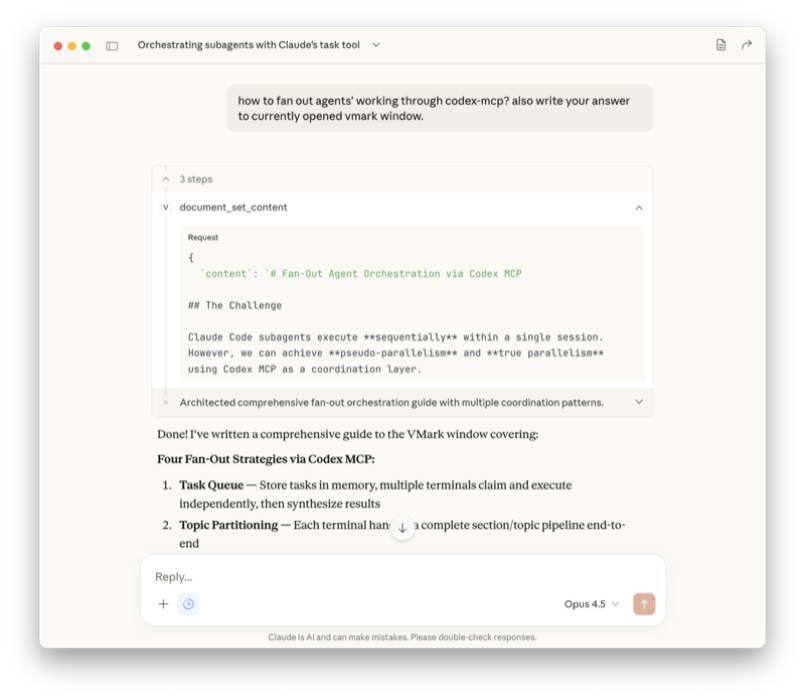
Claude Desktop calls document → set_content to write to VMark
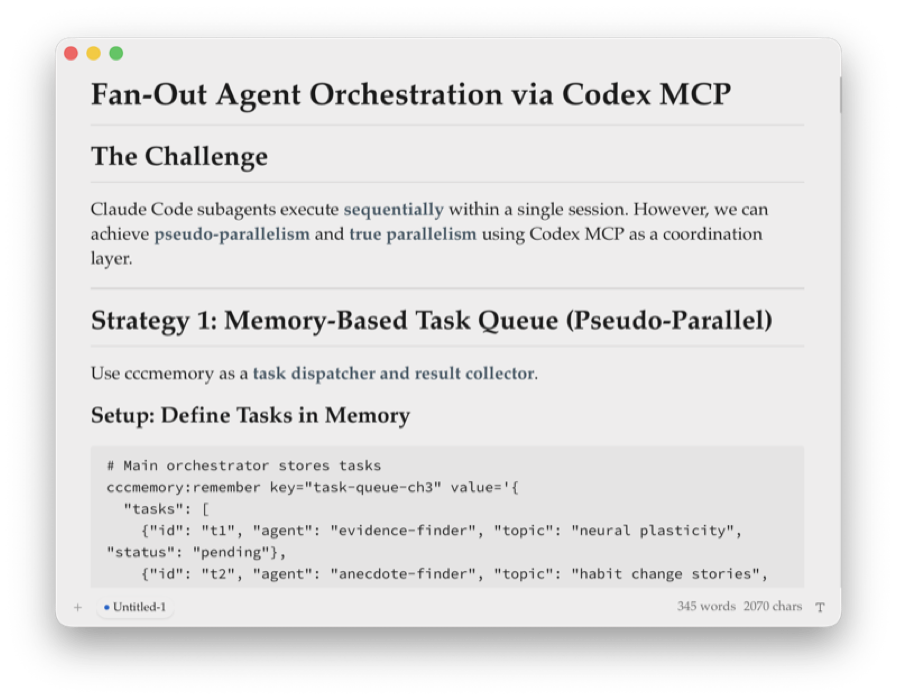
The content appears instantly in VMark, fully formatted
Manual Configuration
If you prefer to configure manually, here are the config file locations:
Claude Desktop
Edit ~/Library/Application Support/Claude/claude_desktop_config.json (macOS) or %APPDATA%\Claude\claude_desktop_config.json (Windows):
{
  "mcpServers": {
    "vmark": {
      "command": "/Applications/VMark.app/Contents/MacOS/vmark-mcp-server"
    }
  }
}
Claude Code
Edit ~/.claude.json or project .mcp.json:
{
  "mcpServers": {
    "vmark": {
      "command": "/Applications/VMark.app/Contents/MacOS/vmark-mcp-server"
    }
  }
}
Codex CLI
Edit ~/.codex/config.toml:
[mcp_servers.vmark]
command = "/Applications/VMark.app/Contents/MacOS/vmark-mcp-server"
Antigravity CLI
Edit ~/.gemini/config/mcp_config.json:
{
  "mcpServers": {
    "vmark": {
      "command": "/Applications/VMark.app/Contents/MacOS/vmark-mcp-server"
    }
  }
}
Grok CLI
Edit ~/.grok/config.toml:
[mcp_servers.vmark]
command = "/Applications/VMark.app/Contents/MacOS/vmark-mcp-server"
opencode
Edit ~/.config/opencode/opencode.json. opencode's schema differs from the mcpServers one: the key is mcp, and command is a single array holding the program and its arguments:
{
  "mcp": {
    "vmark": {
      "type": "local",
      "command": ["/Applications/VMark.app/Contents/MacOS/vmark-mcp-server"],
      "enabled": true
    }
  }
}
If your own settings live in opencode.jsonc, leave them there — opencode merges both files, so VMark's entry in opencode.json is additive. VMark writes the plain-JSON file because it cannot round-trip the comments in a .jsonc one.
An existing vmark entry in opencode.jsonc wins
opencode merges config.json, then opencode.json, then opencode.jsonc, and the last one read takes precedence. So if you previously added a vmark entry to opencode.jsonc by hand, it overrides the one VMark manages — VMark will report the provider as valid while opencode keeps using your older entry (and its stale binary path). Delete the hand-written mcp.vmark block from opencode.jsonc and let the Integrations panel own it.
Finding the Binary Path
On macOS, the MCP server binary is inside VMark.app:
VMark.app/Contents/MacOS/vmark-mcp-server
On Windows:
C:\Program Files\VMark\vmark-mcp-server.exe
On Linux:
/usr/bin/vmark-mcp-server(or where you installed it)
The port is auto-discovered — no args needed.
CLI flags (advanced)
The MCP server binary supports a small set of flags for diagnostics and legacy setups:
| Flag | What it does |
|---|---|
--version (or -v) | Print the version (must match the running VMark) and exit. |
--health-check | Run a self-test of the binary and exit: it starts the MCP server against a built-in mock bridge, prints its version and tool count as JSON, and exits non-zero if the tool count is not what this build expects. It does not contact a running VMark — use it to confirm the binary runs; use Settings → Integrations to check the live bridge. |
--port <number> | Manual port override. Skip the auto-discovery handshake and connect on the given port. Only useful for legacy setups where the bridge port is fixed externally; the auto-discovery path is preferred. |
Example:
vmark-mcp-server --health-check
vmark-mcp-server --version
vmark-mcp-server --port 9223   # legacy / manual
How It Works
AI Assistant <--stdio--> MCP Server <--WebSocket--> VMark Editor- VMark starts a WebSocket bridge on an available port when launched
- The MCP server reads the port and auth token from VMark's app data directory
- The MCP server connects and authenticates via the WebSocket bridge
- AI assistant communicates with the MCP server via stdio
- Commands are relayed to VMark's editor through the bridge
Available Capabilities
When connected, your AI assistant has nine tools:
| Tool | What it covers |
|---|---|
session | Windows, tabs, the active document and browser tabs (read-only) |
workspace | New, open, save, save-as, close, switch tabs, focus a window, open a workspace |
document | Read and write the whole document as Markdown; CJK formatting transforms |
selection | Read and replace the selected text |
workflow | CST-safe patches and validation for GitHub Actions YAML |
browser / browser_read | Embedded-browser automation on macOS — the mutating and read-only halves |
coherence / coherence_resolve | Read the coherence layer; resolve stale edges under a delegation you granted |
Formatting is not a separate tool: the assistant writes Markdown, so headings, tables, math and diagrams are whatever it writes.
See the MCP Tools Reference for complete documentation.
Checking MCP Status
VMark provides multiple ways to check the MCP server status:
Status Bar Indicator
The status bar shows an MCP indicator on the right side. When something needs your attention, a small state word appears beside the satellite icon; a healthy connection is just the green icon. Hovering it lists the AI clients currently connected, by name and version:
| Color | Word | Status |
|---|---|---|
| Green | — | Connected and running |
| Gray | off | Disconnected or stopped |
| Pulsing (animated) | … | Starting up |
| Red | error | Server failed — hover for the reason |
Startup typically completes within 1-2 seconds.
Click the indicator to open Settings → Integrations.
Settings Panel
Settings → Integrations is the other status surface — there is no separate status dialog. While the bridge is running it shows the address it listens on (localhost:<port>, with a copy button) and how many AI clients are connected, refreshed every few seconds. The Test Connection button (labelled Check sidecar while the bridge is stopped) runs the sidecar's own --health-check and reports the sidecar version, its tool count and when it was last checked — it confirms the installed binary works, not that a client is connected.
Troubleshooting
"Connection refused" or "No active editor"
- Ensure VMark is running and has a document open
- Check that the MCP Server is enabled in Settings → Integrations
- Verify the MCP bridge shows "Running" status
- Restart VMark if the connection was interrupted
Path mismatch after moving VMark
If you moved VMark.app to a different location (e.g., from Downloads to Applications), the configuration will point to the old path:
- Open Settings → Integrations
- Look for the amber ⚠ warning icon next to affected providers
- Click Repair to update the path
- Restart your AI assistant
Tools not appearing in AI assistant
- Restart your AI assistant after installing the configuration
- Verify the configuration was installed (check for green checkmark in Settings)
- Check your AI assistant's logs for MCP connection errors
Commands fail with "No active editor"
- Make sure a document tab is active in VMark
- Click in the editor area to focus it
- Some commands require text to be selected first
How Edits Work
The pruned MCP surface follows the read-write spine: AI assistants call document.read to get the current content + a revision token, reason about it, then call document.write with the new full content. The revision token guards against silent overwrites: if you typed in VMark while the AI was thinking, the write returns STALE and the AI re-reads.
For GitHub Actions workflow YAML files, the AI uses workflow.apply_patch instead — VMark's CST-aware mutators preserve comments, anchors, and key order that a raw text rewrite would lose.
There is no preview step for document.write, selection.set or workflow.apply_patch — the change lands in the editor as soon as the revision check passes. The safety net is the edit checkpoint history below; if you want to review before anything lands, keep the document under git and review the diff. The one approval gate is Auto-approve saves to a new location and genie results: with it off (the default), an AI cannot save a document to a new path — workspace.save_as returns APPROVAL_REQUIRED and VMark shows a toast naming the file. Even with it on, save_as refuses to overwrite a different existing file.
Edit Checkpoints
Every AI document mutation — document.write, document.transform, selection.set and workflow.apply_patch — first snapshots the content it is about to replace. The history button in the status bar opens a popover listing, for the focused tab, when each AI write happened and which tool made it, with a one-click Restore to before this write on every row and a Clear history for this tab action. Restoring puts the earlier content back and bumps the document's revision, so an AI client still holding the old revision gets STALE on its next write instead of overwriting your restore.
Checkpoints are kept per file — 50 per file and 5 MiB in total — and persisted to mcp-checkpoints.jsonl in VMark's app data directory, so they survive a restart. Untitled documents are checkpointed per tab.
Security Notes
- The MCP server only accepts local connections (localhost)
- No data is sent to external servers
- AI file operations are confined to the open workspace root and the folders of open documents — see Privacy
- All processing happens on your machine
- The WebSocket bridge is only accessible locally
Next Steps
- Explore all MCP Tools available
- Learn about keyboard shortcuts
- Check out other features